All your installations on one screen
MyCOMPANY is a web and mobile application for installation companies and installers who install, service and manage JABLOTRON security systems. It shows the status of every installation, alerts you to faults and lets you manage cameras and peripherals. The mobile version also serves as a configuration tool for JABLOTRON Mercury control units.


Every installer gets access after completing JABLOTRON training.
What the application can do
The range of functions varies according to the type of control unit and the authorisations the installer has been given within their company.
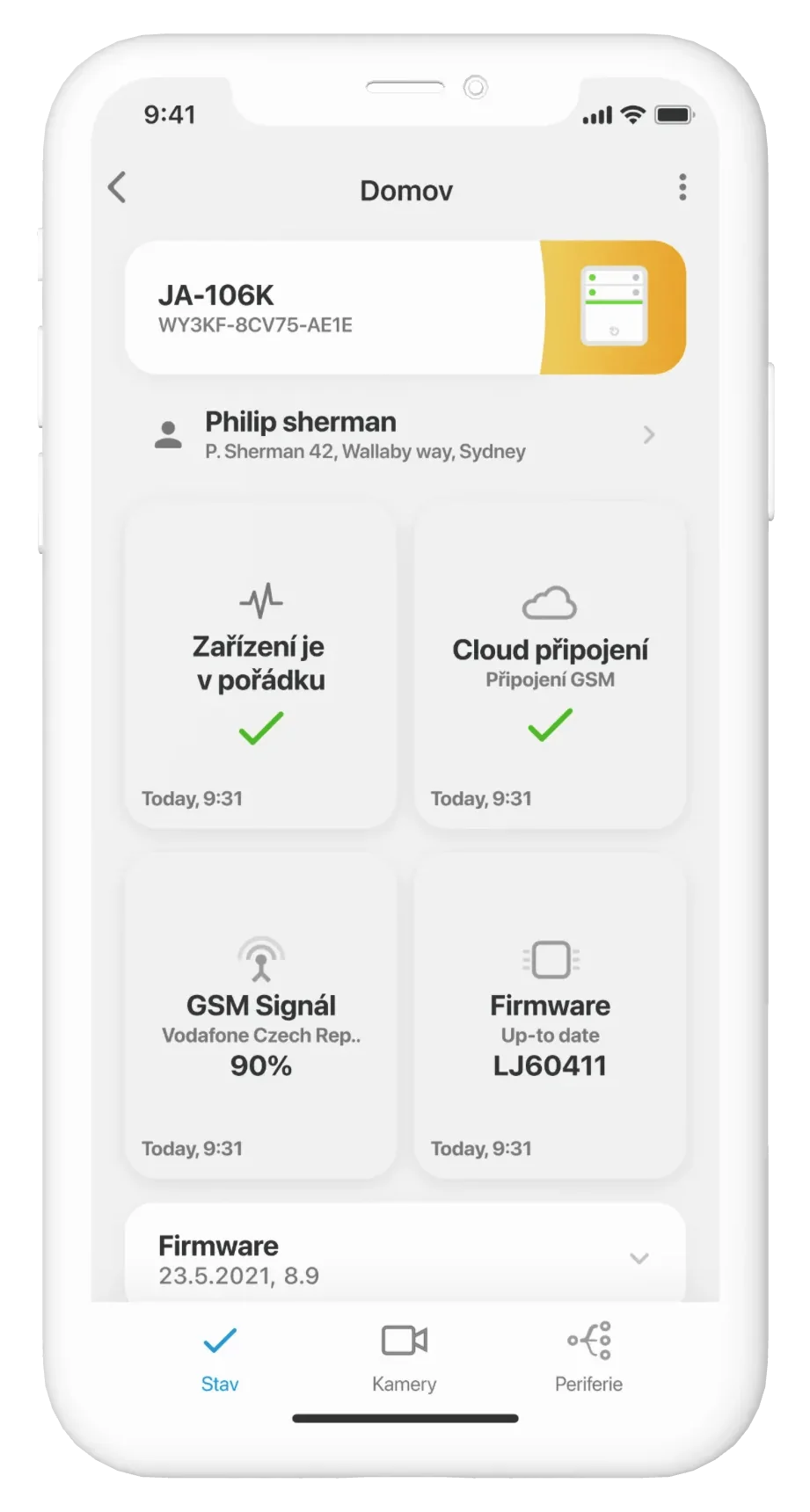
Installation overview
A list of all installations available to the company and to the individual installer, with a colour-coded status for each one.
Online diagnostics
Status of the power supply, the rechargeable battery and peripheral batteries, system errors and hardware and firmware versions.
Fault notifications
PUSH, e-mail or SMS for specific faults. You add the contacts for alerts yourself.
Camera management
Registering a new camera and editing an existing one, stream quality and recording rules.
Peripheral management
An overview of the peripherals in the installation, including battery type, with the option to block or switch them off.
JABLOTRON Mercury configuration
The mobile application also serves as a configuration tool for JABLOTRON Mercury control units.
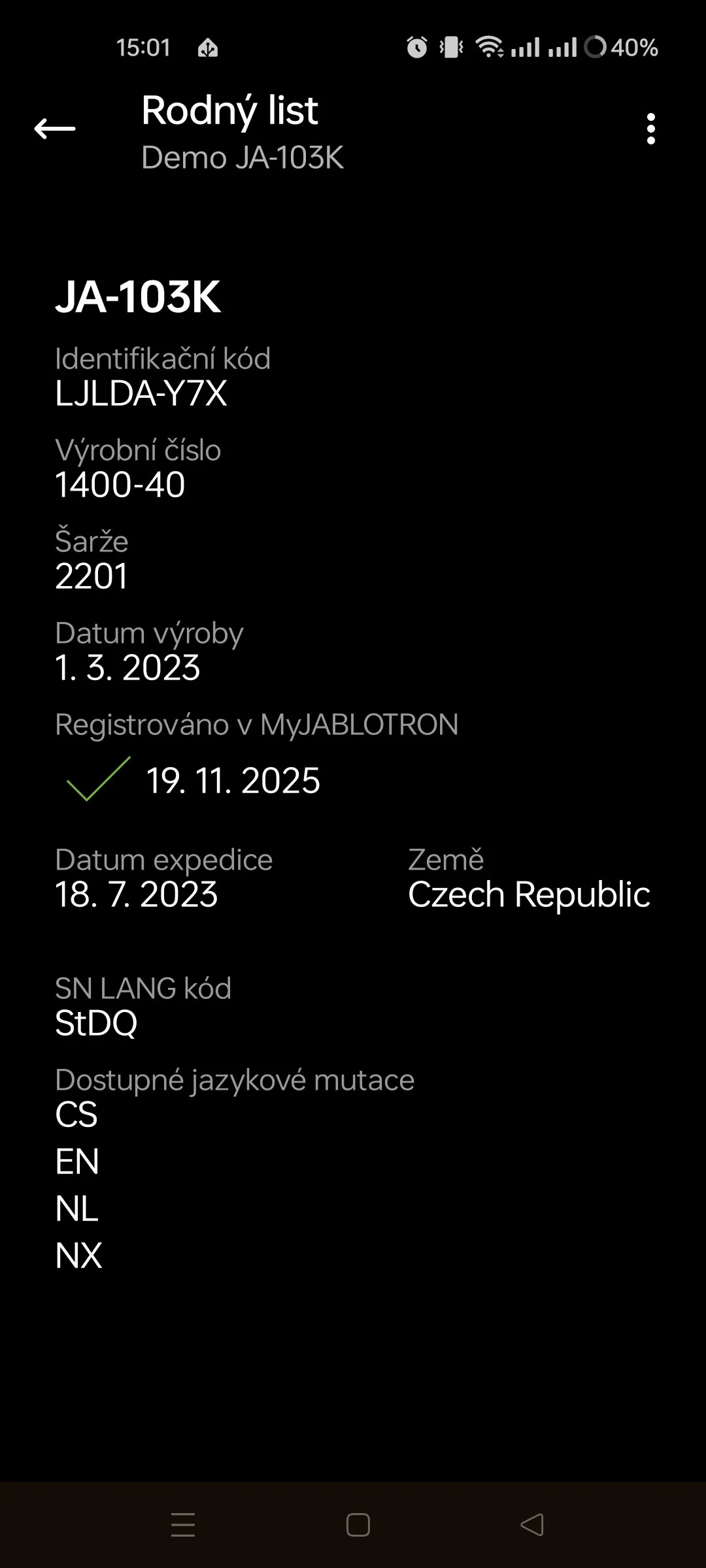
Birth certificate
Scan the barcode to display the complete history and details of the product.
Access management
Quickly add and remove installers in the company, with authorisations for individual modules.
Quotes for customers
The web part puts together an installation proposal from the JABLOTRON Mercury or JABLOTRON 100+ lines with current price lists.
History and filters
The complete technical history event by event, with a filter for a specific type.
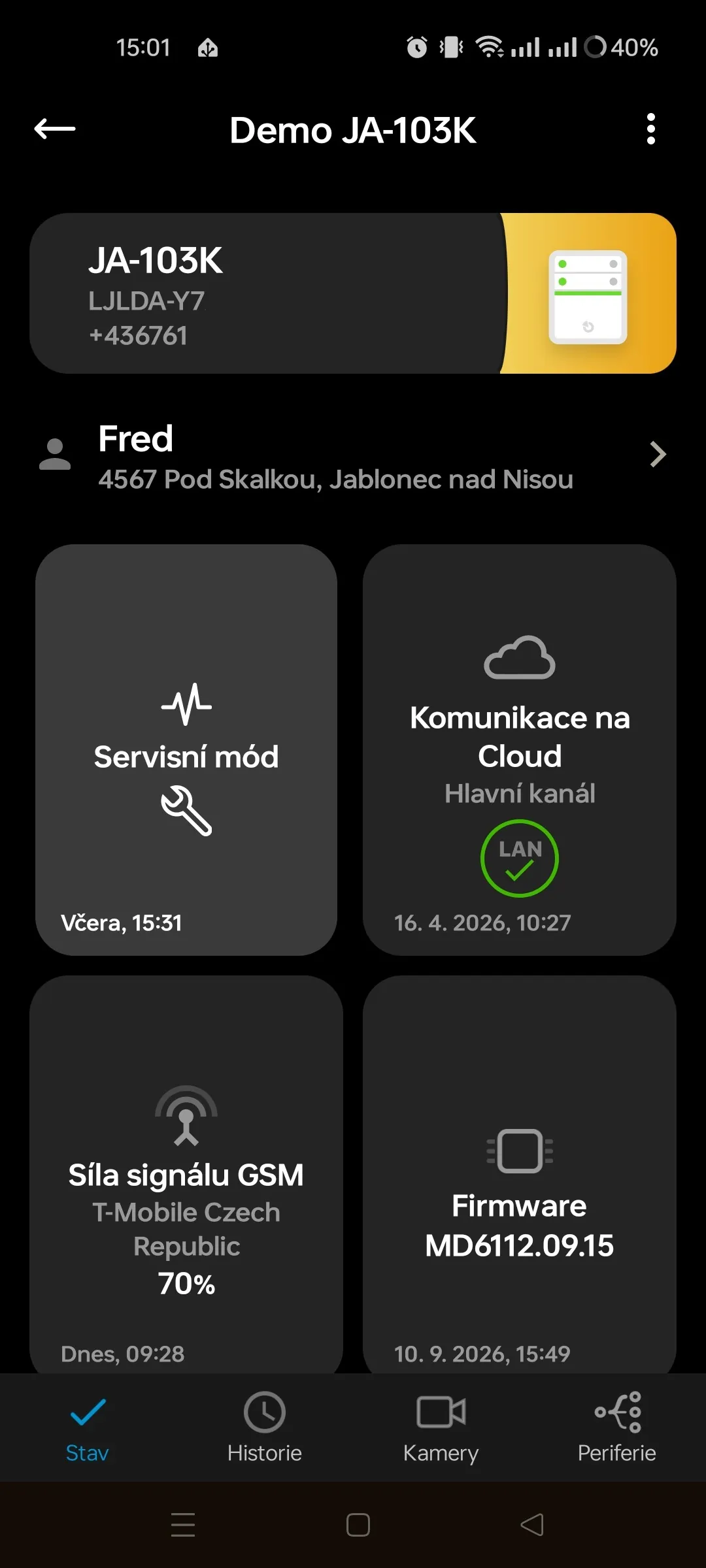
My installations
A list of all installations your company has fitted, with a colour-coded status for each one. The list can be filtered, so you can fix faults before the customer calls you.
- Installation states
- OK · in service · error · blocked
- Installation details
- control unit type, REG-KEY, SIM number
- Diagnostics
- power supply, rechargeable battery, peripheral batteries
- Connectivity
- LAN or GSM, signal strength in %
- Firmware
- version and date of the last update
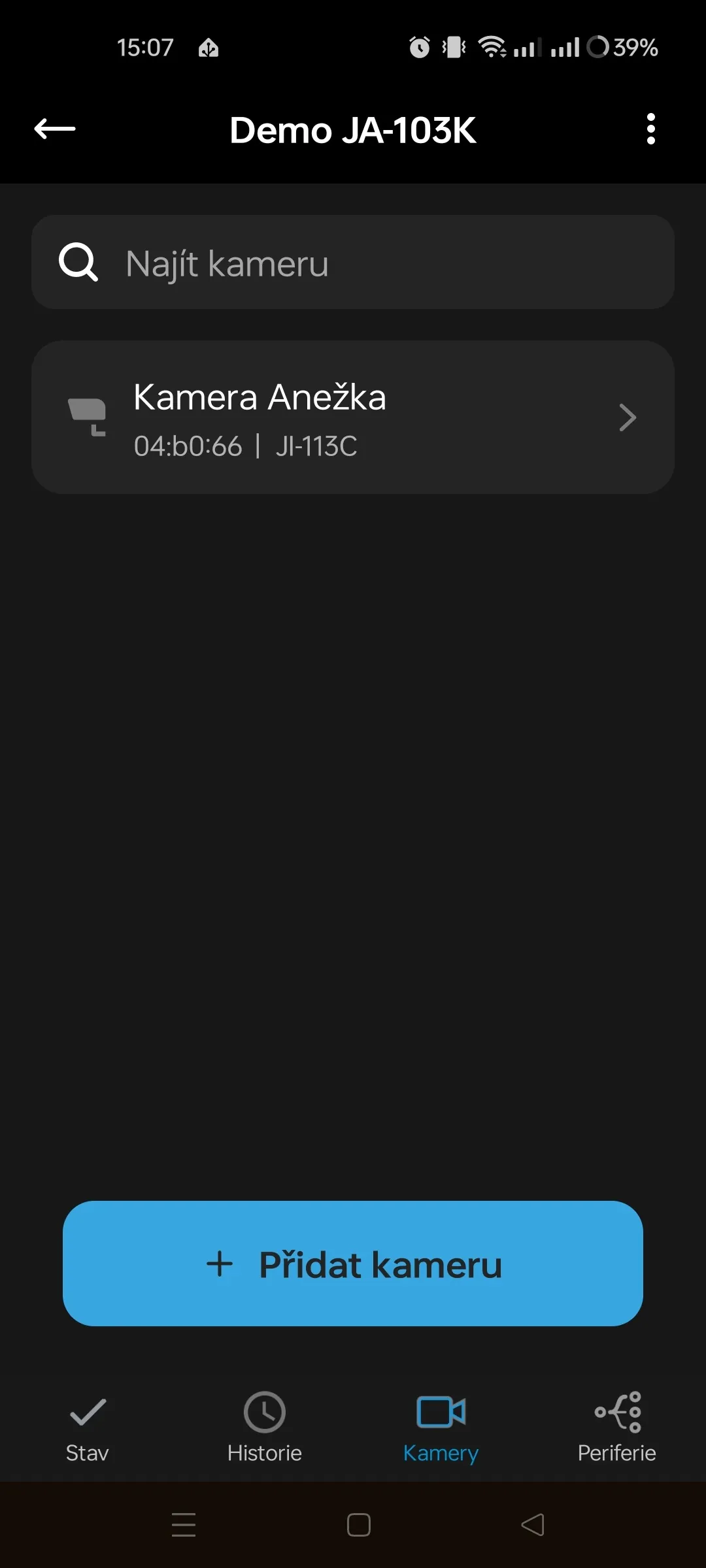
Cameras and peripherals
Enrol a new camera by scanning its QR code or entering its MAC address; rename existing ones and set their stream quality and recording rules.
- Camera types
- JI-111C, JI-112C and cameras with RTSP
- Stream quality
- HD or Full HD
- Deletion of video sequences
- 1 to 30 days
- Recording trigger
- by section status or PG output
Birth certificate and device registration
Scan the barcode and you immediately know what you are working with. In the same way, you register a supported device - simply scan the REG-KEY or the serial number with your phone's camera.
- Identification
- type, registration key, serial number
- Origin
- batch, date of manufacture and registration
- Scanning
- barcode, REG-KEY, QR code
Faults and notifications
For each installation, you set what you want to know about and who else should be informed. The notification centre keeps an overview of all alerts.
Power failure
The control unit has switched to the back-up battery.
Back-up battery fault
The control unit's rechargeable battery does not hold its capacity.
Peripheral battery fault
Low battery in a specific detector.
Communication failure to CLOUD
The control unit has not reported in via either the primary or the secondary channel.
Lost connection to a camera
The camera is not available in its installation.
Radio jamming
Interference in the system's wireless band.
System error
A general system error requiring service intervention.
Entering service mode
Information that someone has entered service mode.
JABLOTRON Mercury configuration tool on your phone
The mobile application also works as a configuration tool for the JABLOTRON Mercury system. You install and set up the control unit directly from your phone, without a laptop or cable.
Installation and configuration
Enrolling peripherals, cards and tags, setting up sections and PG outputs right at the control unit.
Firmware and batteries
Battery status in peripherals and a low-battery warning before a firmware update.
Service mode
Switching to service mode, including unsetting the system on entry.
Other devices
Connection and configuration of FUTURA, VOLTA, AMBIENTA and AURA from Jablotron Living Technology.
Web and mobile
Both parts work with the same data. In the field you use your phone, in the office the web.
In the field
Mobile application
- Check the status of installations — yes, including PUSH notifications
- Register a device — scanning the REG-KEY with the camera
- Configure JABLOTRON Mercury — yes, right at the control unit
- Connect FUTURA, VOLTA, AMBIENTA, AURA — yes
Web only
- Put together a quote with a price list
In the office
Web application
- Check the status of installations — yes
- Register a device — by manual entry
- Put together a quote with a price list — yes, from the JABLOTRON Mercury and JABLOTRON 100+ lines
Phone only
- Configure JABLOTRON Mercury
- Connect FUTURA, VOLTA, AMBIENTA, AURA
How to get started
- 1
Complete the installer training
Complete the JABLOTRON installer training. Once you have finished it, you will be given access to MyJABLOTRON.
- 2
Sign in by e-mail
You will receive a sign-in link at your e-mail address. The same credentials apply to the web and the mobile application.
- 3
Setting authorisations
Your company's manager will set your authorisations for individual modules in access management.
Before you start
Requirements for JABLOTRON 100+
The JABLOTRON 100+ system must be installed via F-Link, or registered to the Cloud in the MyCOMPANY web application. Only then will the installation appear in the mobile application.
MyKNOWLEDGE and support
You will find courses and application recommendations in MyKNOWLEDGE. For anything else, the partner hotline can help: export@jablotron.cz.
Frequently asked questions
For installation companies and individual installers who install, service and manage JABLOTRON security systems. End customers use MyJABLOTRON.
After completing the installer training, everyone is given access to MyJABLOTRON. An e-mail with a sign-in link is sent to the e-mail address provided; the same credentials apply to the web and the mobile application.
The JABLOTRON 100+ system must be installed via F-Link, or registered to the Cloud in the MyCOMPANY web application. Only then will it appear in the mobile application.
An installation may be OK, in service mode, or reporting an error. In the details, you can then see the specific fault - for example a power failure, a communication failure to the Cloud or a low battery in a peripheral.
Yes. For each installation, you switch on PUSH notifications and add contacts who will receive alerts by PUSH or e-mail.
You set the deletion period for each camera in the range of 1 to 30 days. You choose the stream quality between HD and Full HD.
On iOS and iPadOS, version 18.0 or later; the application is also designed for iPad. The Android version is available on Google Play.
Download MyCOMPANY
The application is free of charge for JABLOTRON installation partners. You sign in with the same account as for the web application.